
Why does this happen? A digital certificate used to sign installers and automatically mark them as trusted by Microsoft costs hundreds of euros per year. Without one, Windows treats every unknown .exe as a risk, whether it is actually harmful or not. That is why the warnings below appear.
Windows protected your PC
A blue Windows SmartScreen warning shown immediately after launching the installer.
When you first launch BloodLustSetup.exe, Windows will display a blue window saying “Windows protected your PC.” This is normal and does not mean the file is infected — it only means Windows does not recognize it because it lacks a digital signature.
- Click More info inside the window.
- A button labeled Run anyway will then appear — click it.
- Installation will continue normally.
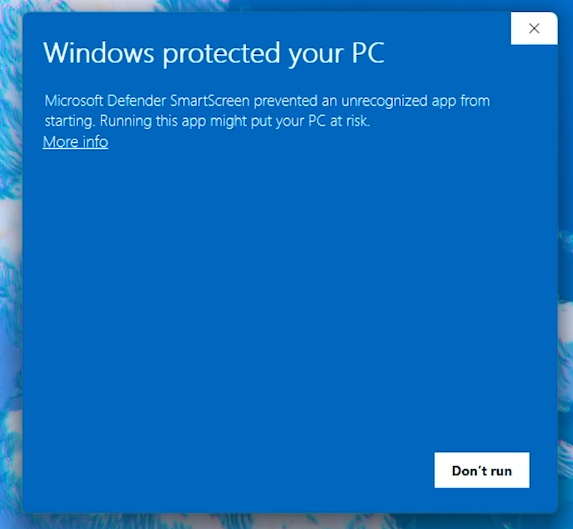
Windows SmartScreen warning — click “More info,” then “Run anyway”
Smart App Control blocks installation
The most common reason the launcher cannot be installed at all.
If the Windows feature Smart App Controlis enabled on your PC, it may completely block the installer with no “Run anyway” option. In that case, you must temporarily turn off Smart App Control to install the launcher.
- Open Windows Security → App & browser control.
- Find the Smart App Control setting and set it to Off.
- Run the launcher installer again.
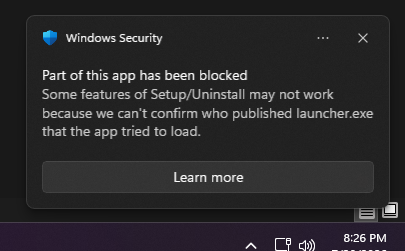
Windows Security → App & browser control
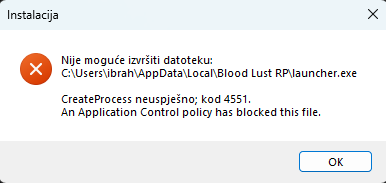
Turning Off Smart App Control
Important note: On most PCs, Smart App Control can be turned on again later without any issue. However, on some devices Microsoft disables this option permanently — once disabled, it cannot be re-enabled without fully reinstalling Windows. This is a Windows limitation and is not under our control.
Windows Defender quarantine
Windows Defender may automatically move the file to quarantine.
Sometimes Windows Defender moves the installer to quarantine automatically and displays a notification in the lower-right corner of the screen. Click that notification to open Windows Defender settings.
- Click the notification or open Windows Security → Protection history.
- Find the entry for BloodLustSetup.exe in the list.
- Click it and select Restore to restore the file from quarantine.
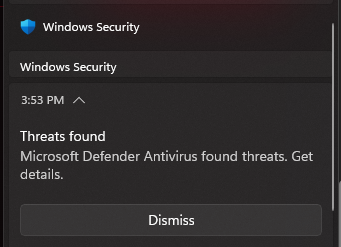
Windows Defender notification
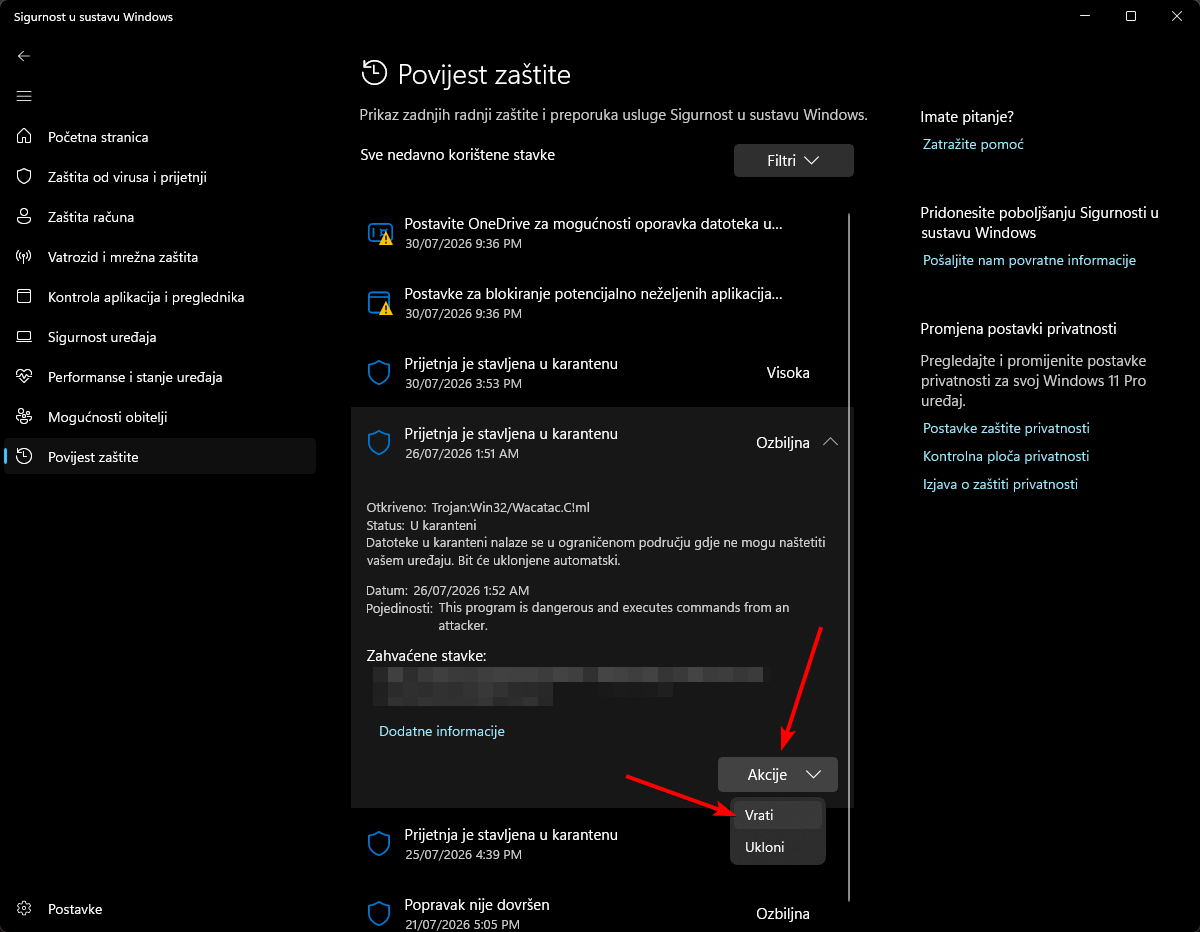
Protection history → Restore
Important: these issues affect only the installer (BloodLustSetup.exe). Once installed, the launcher itself works normally and Windows no longer flags or blocks it.
Want to verify it yourself?
You can check the installer yourself using VirusTotal. Note that because it lacks a digital signature, some antivirus engines may report a false positive.
These issues can be resolved by obtaining an official code-signing certificate, which would eliminate the Windows warnings entirely.
The certificate has a significant annual cost, so obtaining one depends on the server’s continued growth and success. As the community grows, this is something we will actively consider.
Until then, thank you for your patience — the steps above resolve the issue in just a few clicks.